Webcam Test Online: How to Check and Fix Your Camera Before a Video Call
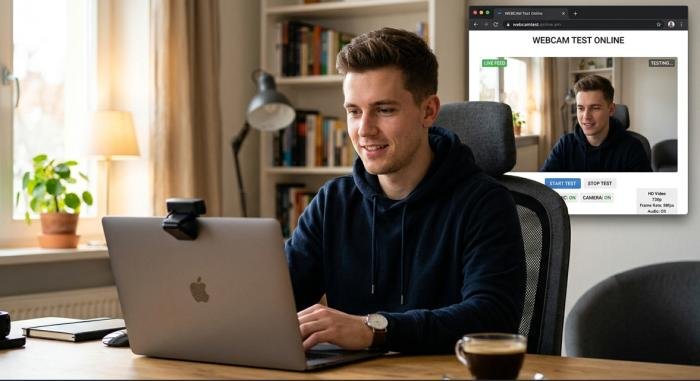
A reliable webcam is important for online meetings, interviews, classes, video calls, and content creation. Before joining an important call, a quick webcam test online can help you confirm that your camera is working properly.
Whether you use a built-in laptop camera or an external USB webcam, testing it beforehand can prevent unexpected problems. You can check the camera preview, image quality, browser permissions, lighting, and camera position in just a few minutes.
Read More: Valinor Shadowfax Explained Origins, Meaning & Lore
What Is a Webcam Test Online?
A webcam test online is a simple browser-based way to check whether your computer camera is working correctly. After opening a trusted webcam testing page, your browser may ask for permission to access the camera. Once permission is granted, the test can display a live preview of your webcam. This allows you to see whether the camera is detected and whether it produces a clear and usable image. A webcam test online can help you check:
- Whether your webcam is detected
- Whether the camera produces a live video
- Whether the correct camera is selected
- Whether the image is clear
- Whether browser camera permission is enabled
- Whether the camera is positioned correctly
- Whether lighting affects video quality
- Whether an external webcam is connected properly
Why Should You Test Your Webcam?
Avoid Last-Minute Camera Problems
Imagine joining an important interview and suddenly seeing a black camera screen. A quick webcam test online before the meeting gives you time to identify and fix the problem. Testing your camera a few minutes before an important call can save time and reduce unnecessary stress.
Check Your Video Quality
A camera can work correctly while still producing poor-quality video. Your image may appear blurry, dark, grainy, overexposed, or badly positioned. A webcam test online allows you to inspect the picture before other people see your video.
Confirm Browser Permissions
Modern browsers protect users by asking permission before websites access cameras and microphones. If camera access has been blocked, your webcam may appear to be broken even when the hardware is working correctly. Running a webcam test online can help determine whether browser permission is causing the problem.
How to Test Your Webcam Online
A basic camera test usually takes only a few minutes.
Connect Your Webcam
If you are using a laptop’s built-in camera, check that the lens is not covered. Some laptops also have a physical privacy shutter. For an external webcam, connect the USB cable securely. If possible, make sure the camera is properly positioned before starting the test.
Open a Webcam Testing Page
Open a reputable browser-based camera testing service. A basic webcam test online normally does not require you to install additional desktop software. Before testing, close unnecessary applications that may already be using your camera.
Allow Camera Access
Your browser may display a permission message asking whether the website can use your camera. Allow camera access if you want to perform the test. If you previously blocked access, you may need to change the website’s camera permission through your browser settings.
Check the Live Preview
After granting permission, you should see your webcam’s live video. Move slightly in front of the camera. If your movements appear in the preview, your webcam is successfully producing video. If you see a black screen or no video, there may be a permission, connection, privacy, or software issue.
Check the Image Quality
Seeing an image is only the first part of a webcam test online. Take a few seconds to inspect the video carefully. Check whether your face is visible, the image is sharp enough, the lighting is balanced, and the camera angle looks natural.
What Should You Check During a Webcam Test?
A proper webcam check should evaluate more than whether the camera turns on.
| Webcam Check | What to Look For | Possible Problem |
| Camera detection | Webcam provides a live preview | Connection or device issue |
| Image clarity | Face appears reasonably sharp | Dirty lens or poor camera |
| Lighting | Face is clearly visible | Poor lighting or exposure |
| Camera position | Face is naturally framed | Incorrect camera angle |
| Video smoothness | Movement appears reasonably fluid | Performance or camera issue |
| Browser access | Browser can use the camera | Permission or privacy issue |
Camera Detection
First, make sure the camera is recognized. If your computer has both a built-in camera and an external webcam, confirm that the correct device is selected. A webcam test online can help you identify whether the intended camera is producing a video feed.
Image Clarity and Resolution
A working camera does not always provide good video quality. Look for excessive blur, pixelation, noise, or distortion. Resolution matters, but it is not the only factor. Lighting, lens quality, camera position, and image processing can also affect how your video looks.
Lighting and Exposure
Good lighting can make a major difference in webcam quality. If your face appears too dark, move closer to a window or place a light source in front of you. Avoid placing a bright window directly behind you because it can make your face appear dark.
Camera Positioning
Try to place your webcam around eye level. This usually creates a more natural appearance during online meetings and interviews. Avoid positioning the camera extremely high or low.
Video Smoothness
Move your head or hands slowly while watching the preview. The video should respond without severe freezing or unusual delays. The goal of a webcam test online is to confirm that your camera provides a stable and usable video feed.
Webcam Test Online on Different Devices
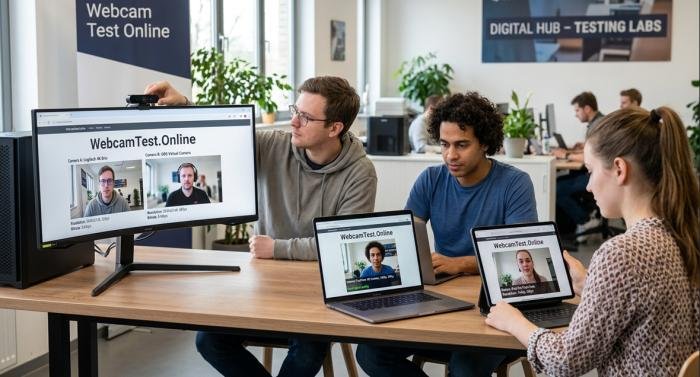
Windows PCs and Laptops
Windows computers may have an integrated webcam or an external USB camera. If the camera does not work, check whether your computer recognizes it. Also check privacy settings and make sure another application is not already using the webcam.
Mac Computers
Mac laptops commonly include built-in cameras. When performing a webcam test online, make sure your browser has permission to access the camera. For an external webcam, confirm that it is connected correctly and selected by the website or application.
Chromebooks
Chromebooks rely heavily on browser-based services, so camera permissions are especially important. If the camera cannot be accessed, check the browser’s permission settings and make sure another application is not using the camera.
External USB Webcams
External webcams can provide better positioning and, depending on the model, improved image quality. If an external camera is not detected during a webcam test online, unplug it and reconnect it. You can also try another USB port. If possible, test the webcam on another computer. This can help determine whether the problem is with the camera or your computer.
Common Webcam Problems and How to Fix Them
Webcam Is Not Detected
If your camera does not appear, begin by checking the physical connection. For a USB webcam, disconnect and reconnect the cable. Try another USB port if available. For a built-in laptop camera, check whether a privacy shutter, keyboard shortcut, or device setting has disabled the camera.
Black or Blank Camera Screen
A black screen can have several causes. The lens may be covered, another application may be using the camera, or your browser may not have permission to access it. Start by checking the physical lens. Then close applications that may be using the camera and run the webcam test online again.
Browser Cannot Access the Camera
If your browser repeatedly refuses camera access, check the website’s permission settings. You can usually access these settings through the site information or lock icon near the browser address bar. Check whether camera access is blocked. After changing the permission, reload the page and perform the test again.
Another Application Is Using the Webcam
Some cameras cannot be accessed by multiple applications at the same time. If Zoom, Microsoft Teams, Skype, a camera application, or another browser tab is using your webcam, close it and try the webcam test online again.
Poor or Blurry Video
A blurry webcam image may be caused by a dirty lens, poor lighting, limited focus, or the camera’s hardware quality. Gently clean the lens with a suitable soft cloth. Then improve the lighting and check whether the image becomes clearer.
How to Improve Your Webcam Quality
You do not always need a new camera to improve your video. Start with better lighting. A light source in front of you can make your face much clearer. Natural window light can also work well when it does not create strong backlighting. Next, clean your webcam lens. Dust and fingerprints can make the picture look less sharp. Position the camera around eye level and keep your face reasonably centered. A simple and uncluttered background can also make your video appear more professional. Before an important webcam test online, close unnecessary applications. This can reduce system load and help your computer handle video processing more efficiently.
Is a Webcam Test Online Safe?
A reputable webcam test online service should clearly explain why it needs camera access. Browsers normally ask for permission before allowing a website to use your camera. For privacy, only give camera access to websites you trust. After finishing the test, you can review the website’s permissions and remove camera access if you no longer need it. You should also avoid installing unknown webcam software simply because a website claims it is necessary for a basic camera check.
Webcam Test Before Zoom, Google Meet, and Teams
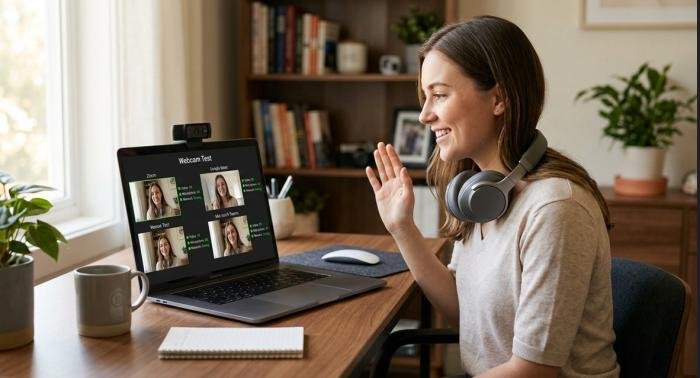
It is better to test your camera before an important meeting instead of waiting until the meeting begins. First, perform a webcam test online and make sure the camera produces a clear image. Then open your video conferencing application and confirm that it has selected the same camera. This second check is useful because a camera can work correctly in your browser but still be configured incorrectly inside another application. Before an important meeting, also check your microphone, speakers or headphones, internet connection, lighting, and camera position.
Webcam Test Checklist
Before joining an important video call, use this checklist:
- Camera is connected
- Webcam lens is clean
- Privacy shutter is open
- Browser has camera permission
- Correct camera is selected
- Live video appears
- Image is reasonably sharp
- Lighting is good
- Camera is positioned correctly
- Other camera-using applications are closed
- Microphone has been tested
- Video conferencing software has been checked
A webcam test online takes only a few minutes, but it can prevent avoidable problems during an important call.
Final Thoughts
A webcam test online is a quick and practical way to make sure your camera is ready before an important video call. It can confirm that your webcam is detected, your browser has permission to use it, and your video quality is suitable. If the camera does not work, do not immediately assume that the hardware is broken. Check the USB connection, privacy settings, browser permissions, camera selection, lighting, and applications that may already be using the device.
Whether you are preparing for an online interview, virtual class, business meeting, or everyday video call, taking a few minutes to test your webcam can prevent unnecessary problems and help you start your call with confidence.
FAQs webcam test online
Q1: What is a webcam test online?
Ans: A webcam test online is a browser-based method for checking whether your camera is working. It can show a live preview and help identify camera access, connection, or image-quality problems.
Q2: How can I test my webcam without installing software?
Ans: You can use a browser-based webcam testing service. Open the test, allow camera access when prompted, and check whether your live video appears.
Q3: Why is my webcam not working online?
Ans: Common causes include blocked browser permissions, a disconnected camera, another application using the webcam, privacy settings, or a disabled camera.
Q4: Why does my webcam show a black screen?
Ans: Check whether the lens is covered, another application is using the webcam, or your browser has blocked camera access. Reconnecting an external webcam may also help.
Q5: Can I test my laptop camera online?
Ans: Yes. A webcam test online can usually check a built-in laptop camera as long as your browser and operating system allow camera access.
Q6: How do I test an external USB webcam?
Ans: Connect the USB webcam, close applications that may be using it, open a webcam test, and select the external camera if multiple cameras are available.
Q7: How can I improve my webcam picture quality?
Ans: Improve the lighting, clean the camera lens, position the camera at eye level, avoid strong light behind you, and close unnecessary applications.
Q8: Does a webcam test also check the microphone?
Ans: Not necessarily. A webcam test online primarily checks the camera. To verify audio, use a separate microphone test or check your microphone settings in your video conferencing application.