Webcam Test Online – Check Camera in Seconds
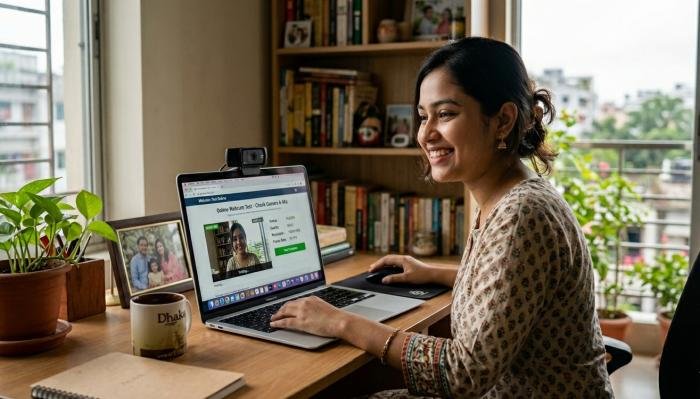
Webcams have become an important part of our daily lives. Whether you are attending online classes, joining business meetings, video chatting with friends, recording YouTube videos, streaming online, or attending virtual interviews, a working webcam is essential. However, many people face webcam problems at the worst possible time — just before an important meeting or interview. That is why using a Webcam Test Online tool is very helpful.
A Webcam Test Online tool allows you to check your camera instantly from your browser without downloading or installing any software. You simply open the website, allow camera permission, and within seconds you can see whether your webcam is working properly or not.
Webcam testing, how it works, why it is important, common webcam problems, how to fix them, tips for better webcam quality, and frequently asked questions. This is a complete guide written in a simple and human-friendly way so everyone can understand it easily.
What is Webcam Test Online
Webcam Test Online is a browser-based tool that helps you test your webcam and microphone directly from your web browser. It shows your camera preview, checks whether the camera is detected, and sometimes also shows camera resolution, frame rate, and microphone audio.
The biggest advantage of online webcam testing is that you do not need to install any software. Everything works directly in your browser like Google Chrome, Firefox, Edge, or Safari.
Online webcam test tools are commonly used before:
- Zoom meetings
- Google Meet meetings
- Microsoft Teams meetings
- Online classes
- Job interviews
- Live streaming
- Recording videos
- Online exams
Testing your webcam before these activities helps you avoid technical problems.
Why Webcam Testing is Important
Many people ignore webcam testing and later face problems like camera not detected, black screen, no video, or microphone not working. This can create a bad impression in meetings or interviews.
Here are some important reasons to test your webcam:
First, it helps you confirm that your camera is working properly. Second, it checks whether your browser has camera permission. Third, it allows you to test microphone audio. Fourth, it helps you check camera quality and lighting. Fifth, it prevents last-minute technical issues.
Sixth, it saves time during meetings or classes. Seventh, it helps you look professional in video calls. Testing your webcam only takes a few seconds but can prevent many problems.
Read More: Igtools followers apk Download Latest Version for Android
How Webcam Test Online Works
Webcam Test Online tools use browser technology to access your camera. Modern browsers support camera access through permission settings.
Here is how the process works:
When you open a webcam test website, the website asks for permission to access your camera and microphone. After you click “Allow”, the browser connects to your webcam device. Then the website displays your camera video on the screen and shows information such as resolution and frame rate.
Steps to Use Webcam Test Online
Follow these simple steps to test your webcam online:
- Open your web browser.
- Search for Webcam Test Online.
- Open any webcam testing website.
- Click the “Start Test” button.
- Allow camera permission when asked.
- Your webcam video will appear on the screen.
- Check video quality and camera angle.
- Test microphone if available.
- If everything works, your webcam is ready.
This process is very simple and anyone can do it without technical knowledge.
Common Webcam Problems and How to Fix Them
Sometimes webcams do not work properly. Below are common problems and their solutions.
Webcam Not Detected
This happens when the computer cannot find the webcam device.
Solution: Reconnect the webcam or restart your computer. Make sure the webcam is properly plugged in.
Camera Permission Denied
If you accidentally click “Block” instead of “Allow”, the webcam will not work.
Solution: Go to browser settings and allow camera permission for the website.
Black Screen on Webcam
Sometimes the webcam shows a black screen.
Solution: Another application like Zoom or Skype may be using the camera. Close all apps and try again.
Webcam Not Working in Browser
This may happen due to an outdated browser.
Solution: Update your browser or try another browser like Chrome or Firefox.
Blurry Webcam Video
This happens due to poor lighting or dirty camera lens.
Solution: Clean the camera lens and use proper lighting.
Webcam Test Features
| Feature | Description |
| Camera Preview | Shows live webcam video |
| Microphone Test | Checks microphone audio |
| Resolution Check | Displays camera resolution |
| Frame Rate | Shows FPS performance |
| Permission Check | Verifies camera permission |
| Device Detection | Detects webcam device |
| Browser Support | Works in modern browsers |
| No Installation | No software download needed |
| Fast Testing | Test completes in seconds |
| Free Use | Most tools are free |
Tips for Better Webcam Quality
If you want to improve your webcam video quality for meetings or videos, follow these tips:
Use proper lighting in front of your face instead of behind you. Keep the camera at eye level. Clean the webcam lens regularly. Use a simple and clean background. Close unnecessary applications. Use an external webcam for better quality. Check your internet connection before video calls.
Update your webcam drivers regularly. Avoid sitting in dark rooms. Use a ring light if possible. These tips can significantly improve your video quality.
Webcam Test for Different Devices
Laptop Webcam Test: Most laptops have built-in webcams. You can test them directly using online webcam test tools without any setup.
Desktop Webcam Test: Desktop computers usually require external webcams connected via USB. Make sure the webcam is connected before testing.
Mobile Webcam Test: Smartphones also allow webcam testing through browsers. You can test both front and back cameras.
Tablet Webcam Test: Tablet users can also test cameras using online webcam testing websites.
Best Browsers for Webcam Test Online
Webcam testing works best on modern browsers such as:
- Google Chrome
- Mozilla Firefox
- Microsoft Edge
- Safari
- Opera
Always keep your browser updated for the best performance and compatibility.
Benefits of Webcam Test Online
There are many advantages of using Webcam Test Online tools: It is fast and easy to use. It does not require installation. It works on laptops, desktops, and mobiles It helps detect camera problems. It tests microphone audio. It shows camera quality and resolution. It saves time before meetings. It is usually free to use. It works directly in the browser. It helps avoid technical issues during important calls.
When Should You Test Your Webcam
You should test your webcam before the following activities: Before Zoom meetings Before Google Meet meetings. Before Microsoft Teams meetings. Before online exams. Before job interviews. Before live streaming. Before recording videos. When your camera is not working. When you connect a new webcam. After updating your computer. Testing before important events is always a good habit.
Is Webcam Test Online Safe to Use
Most webcam test websites are safe because they do not record or store your video. They only show your camera preview for testing purposes. However, you should always use trusted websites and close the webcam tab after testing.
Never allow camera permission on unknown websites. If you are concerned about privacy, you can disable camera permission after testing from browser settings.
Conclusion
Webcam Test Online – Check Camera in Seconds is a very useful and simple tool for anyone who uses a webcam for meetings, classes, streaming, interviews, or video recording. It allows users to quickly check whether their camera and microphone are working properly without installing any software.
Webcam testing helps prevent technical problems, saves time, and ensures that your video and audio are working before important meetings or events. It is fast, easy, free, and works on almost all devices and browsers.
FAQs about Webcam Test Online
Q1: What is Webcam Test Online?
Ans: Webcam Test Online is a browser-based tool that allows you to check your webcam and microphone without installing any software.
Q2: Do I need to install software for webcam testing?
Ans: No, webcam testing works directly in your web browser without installing any software.
Q3: Why is my webcam not working online?
Ans: Your webcam may not work due to permission issues, outdated drivers, browser problems, or another application using the camera.
Q4: Can I test my microphone with webcam test online?
Ans: Yes, many webcam test tools also allow you to test microphone audio.
Q5: Is webcam test online free to use?
Ans: Yes, most webcam testing websites are free to use.
Q6: Which browser is best for webcam testing?
Ans: Google Chrome and Mozilla Firefox are the best browsers for webcam testing.
Q7: Can I test an external webcam online?
Ans: Yes, you can test both built-in and external webcams using online webcam test tools.
Q8: How long does webcam testing take?
Ans: Webcam testing usually takes only a few seconds.
Q9: Is webcam test online safe for privacy?
Ans: Yes, most tools are safe, but you should always use trusted websites and remove camera permission after testing if needed.